Does PS4 Controller Work On PC Connection Methods And Compatibility
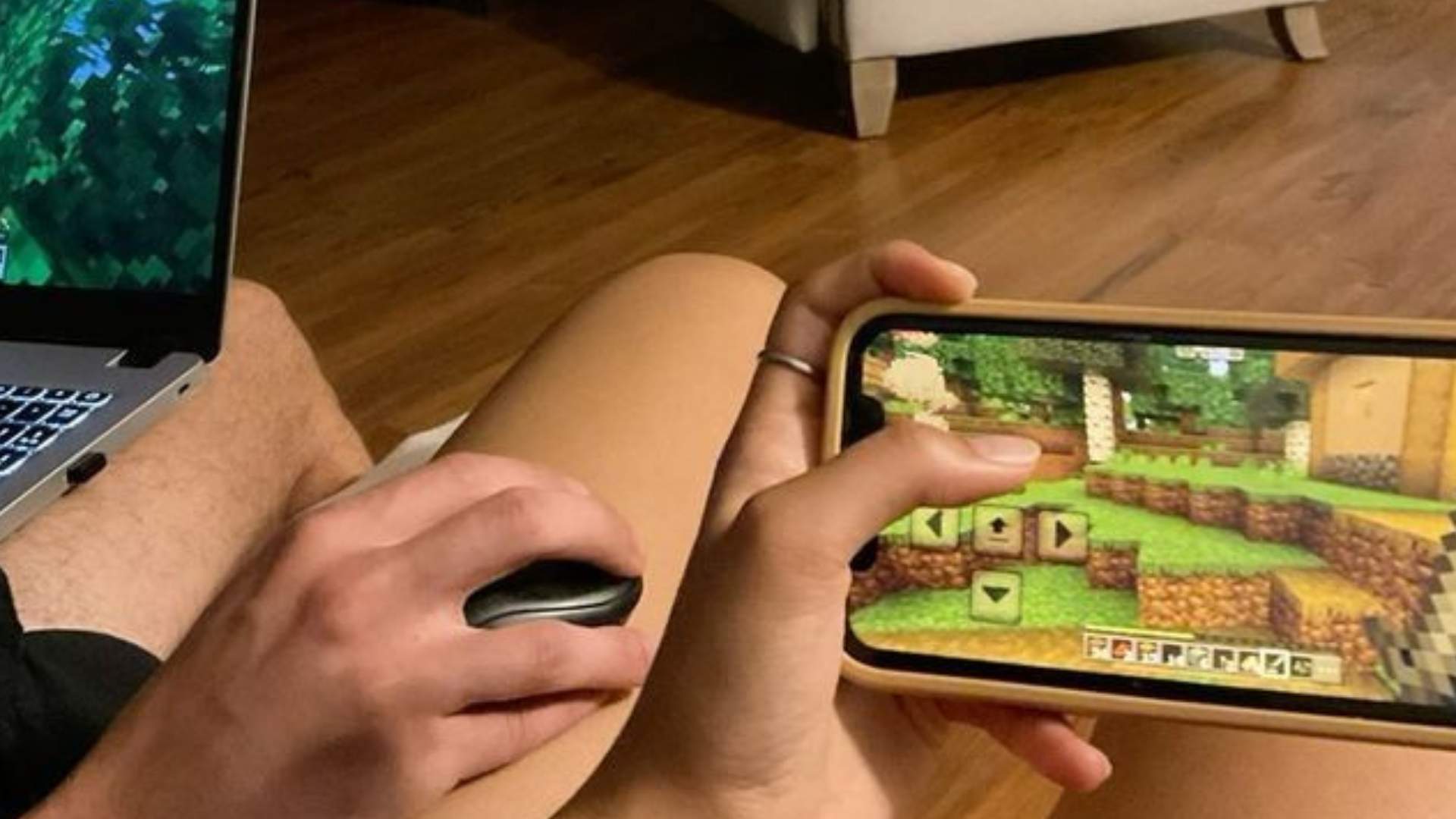
Connecting a PlayStation 4 DualShock 4 controller to a desktop or laptop computer is a popular choice for gamers seeking ergonomic controls outside of standard keyboard setups. PC operating systems offer native and third-party support options that allow the gamepad to function smoothly across various gaming platforms. Understanding the different hardware connection methods and compatibility layers ensures you get the best performance during your gaming sessions.
Connecting via USB Cable Connection
Using a micro-USB cable is the quickest and most straightforward way to establish a stable connection between your DualShock 4 controller and a PC. Simply plug the cable into an available USB port on your computer, and the system should recognize the gamepad automatically. Wired connections provide minimal input latency, making this option ideal for fast-paced action or competitive gaming.
While most modern operating systems handle USB connections seamlessly, using a reliable data-capable cable is essential. Lower-quality charging cables may fail to transmit input data effectively to your system. Once connected, your controller is ready to use in games that natively support PlayStation inputs.
Wireless Setup with Bluetooth
For a cord-free setup, you can pair the DualShock 4 controller wirelessly using your PC's built-in Bluetooth adapter. Press and hold the PS button and Share button simultaneously until the light bar flashes rapidly to enter pairing mode. Then, open your computer's Bluetooth settings menu to pair the detected wireless controller.
If your desktop lacks native Bluetooth hardware, using a USB Bluetooth dongle will achieve the same wireless functionality. Wireless play offers great freedom of movement, though battery life and environmental interference should be kept in mind.
Steam Integration and Native Game Support
Gaming clients like Steam feature built-in configuration settings designed to translate DualShock 4 inputs automatically. By enabling PlayStation Controller Support within Steam settings, the platform mapping adapts seamlessly to both wired and wireless connections. This eliminates the need for extra configuration software when playing titles within your library.
Many modern PC games offer native support for PlayStation button prompts directly on screen. However, older titles or non-Steam releases may require additional setup to recognize the gamepad correctly.
Third-Party Software and Compatibility Wrappers
Because many Windows PC titles rely on Microsoft's XInput API, direct DirectInput signals from a DualShock 4 controller might not work natively in every title. Third-party translation wrappers like DS4Windows solve this issue by tricking the system into reading the gamepad as an Xbox controller. This grants full functionality across virtually all PC gaming storefronts and emulators.
Using utility programs also grants access to advanced settings like customized light bar brightness, trackpad behavior, and key remapping. Understanding these software solutions ensures your controller remains versatile across your entire game collection.